Step 1 — Splash Screen
The app opens with a clean, branded splash screen featuring the VeeSh logo with a clapperboard icon. This creates immediate brand recognition and sets the tone for a premium entertainment experience.
Key UI Elements:
- VeeSh logo with gradient purple styling
- Clapperboard icon representing film/video content
- Dark background for premium feel
- Clean, minimalist design
Step 2 — Discover Home
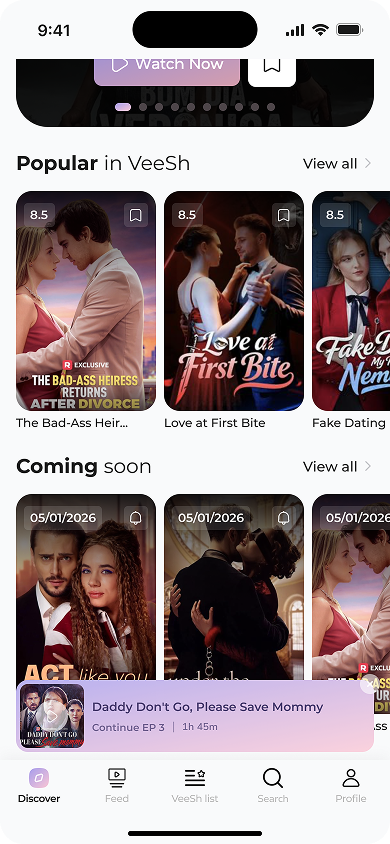
After the splash screen, users land on the main discovery page featuring curated content sections. The hero banner highlights premium content with immediate "Watch Now" access, while organized sections below showcase popular, coming soon, and new releases.
Key UI Elements:
- Featured content banner with "Watch Now" CTA
- Popular in VeeSh horizontal carousel
- Coming Soon section with release dates
- Continue Watching sticky bar
- Bottom navigation with 5 main sections
Step 3 — Popular Content Grid
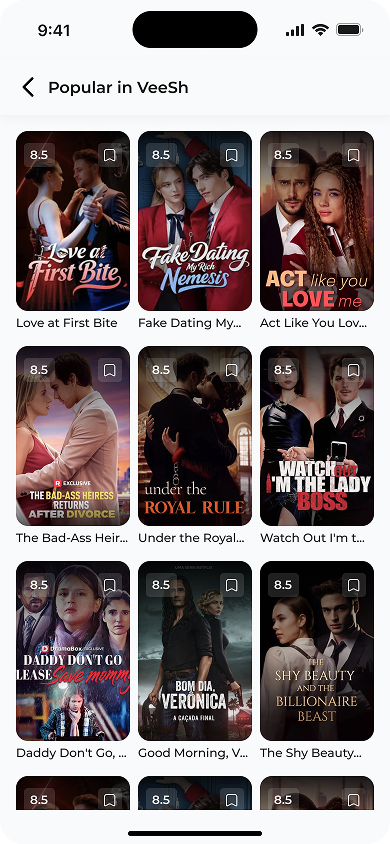
Users can explore the full catalog of popular content in a clean grid layout. Each content card displays ratings, exclusive badges, and bookmark functionality for easy content management.
Key UI Elements:
- 3-column grid layout for optimal mobile viewing
- Rating overlays (8.5/10) for quality indication
- Bookmark icons for saving content
- Exclusive content badges (Netflix, DramaBox)
- Back navigation to previous screen
Step 4 — Series Detail Page
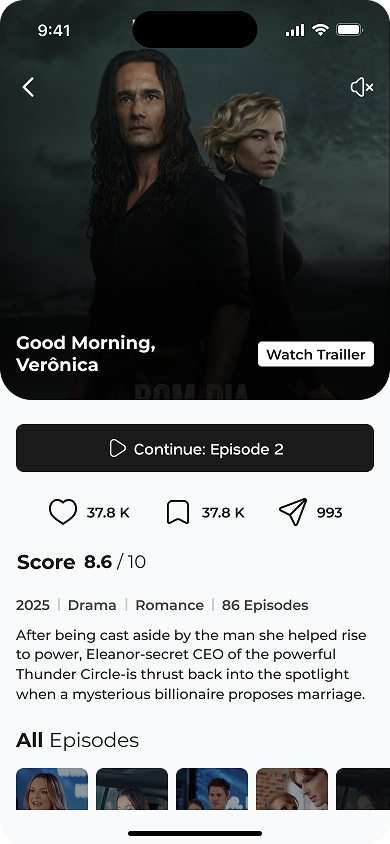
The series detail page provides comprehensive information about the selected content, including synopsis, ratings, and episode access. Users can continue watching from where they left off or start from the beginning.
Key UI Elements:
- Hero image with series artwork
- Continue Episode button for returning users
- Watch Trailer option
- Social metrics (37.8K likes, saves, shares)
- Series metadata (year, genre, episode count)
- Episode thumbnail carousel
Step 5 — Vertical Trailer Feed
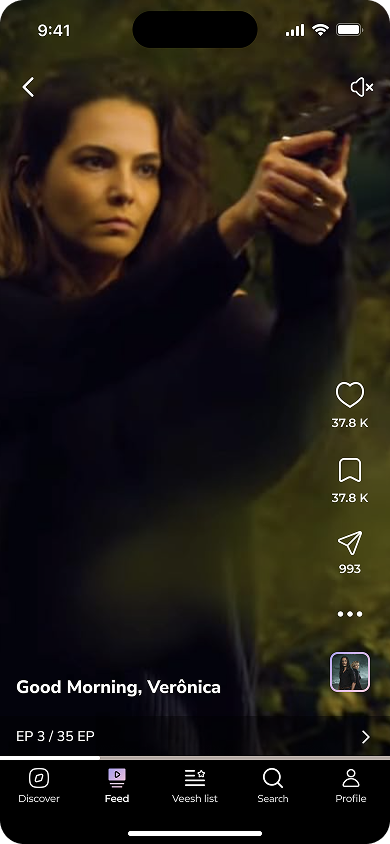
The vertical trailer feed offers an immersive, TikTok-style experience for content discovery. Users can swipe vertically through full-screen trailers with one-hand interaction tools for engagement and social sharing.
Key UI Elements:
- Full-screen vertical video player
- Right-side engagement toolbar (like, save, share)
- Episode progress indicator (EP 3/35 EP)
- Mute/unmute toggle
- Series thumbnail for context
- Next episode navigation
Step 6 — Episode Selection Modal
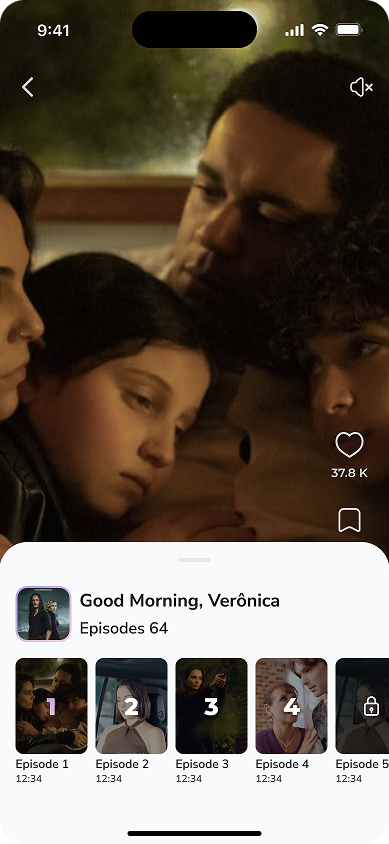
A bottom sheet modal allows users to browse and select specific episodes while maintaining the video context. Each episode shows duration and premium indicators for locked content.
Key UI Elements:
- Draggable bottom sheet interface
- Series artwork and episode count
- Horizontal episode scroll with thumbnails
- Episode duration indicators (12:34)
- Premium lock icons for restricted content
- Numbered episode organization
Step 7 — Video Quality & Settings
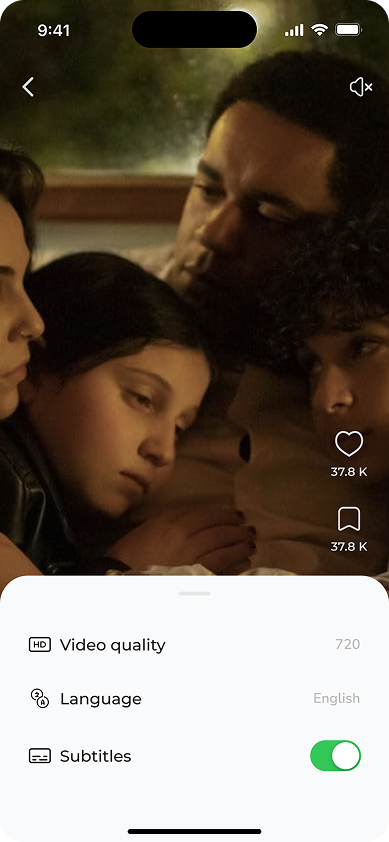
Users can customize their viewing experience through comprehensive video settings including quality, language, and subtitle options. Premium features like 1080p HD are clearly marked.
Key UI Elements:
- Video quality selector (Auto, 1080 HD, 720, 580)
- Language selection with current choice
- Subtitle toggle switch
- Premium HD indicator with diamond icon
- Draggable settings sheet
Step 8 — VeeSh List (Personal Library)
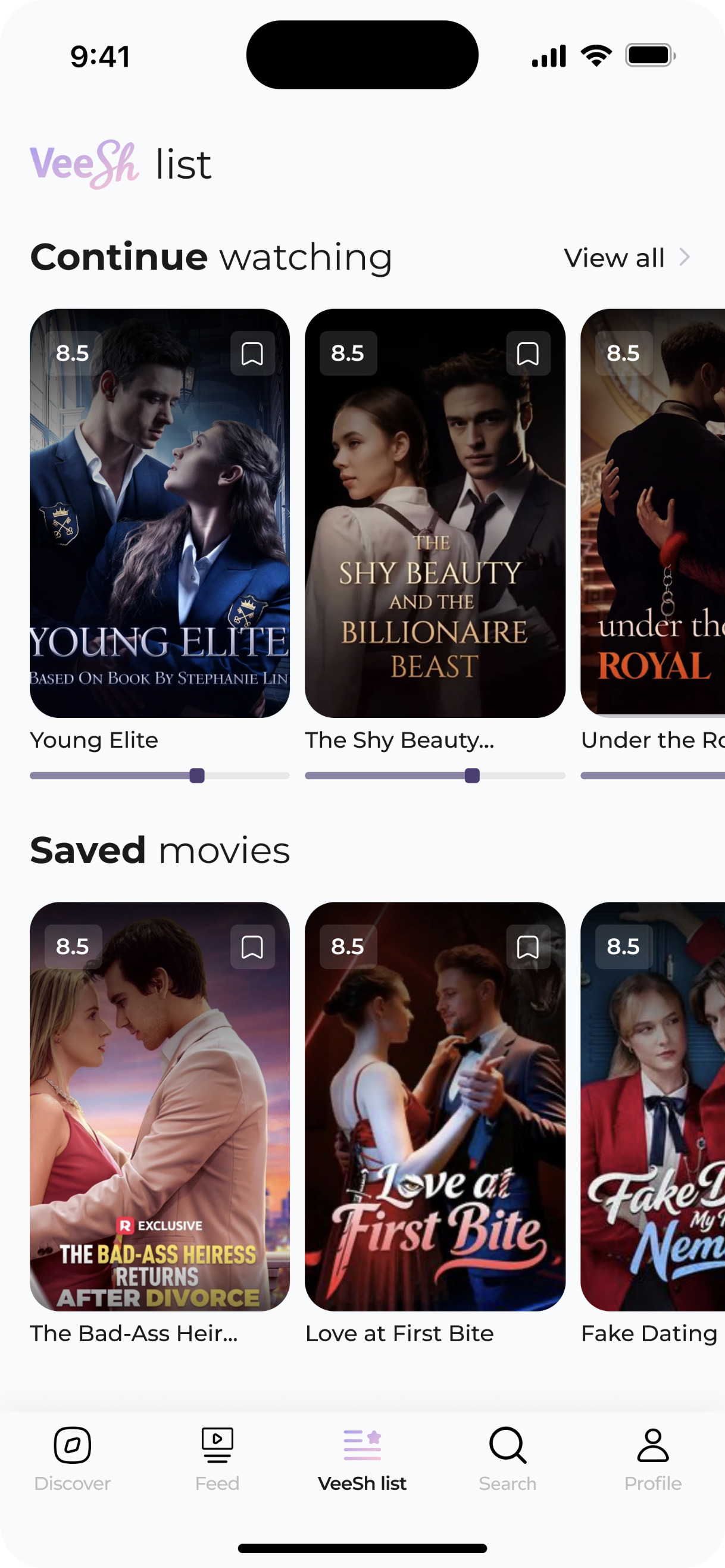
The VeeSh List serves as a personalized content hub where users can manage their viewing activity and saved content. It provides quick access to continue watching and saved movies with progress tracking.
Key UI Elements:
- Continue Watching section with progress bars
- Saved Movies collection
- Content ratings and bookmark icons
- Horizontal scrollable content rows
- View all options for expanded browsing
Step 9 — Search & Discovery
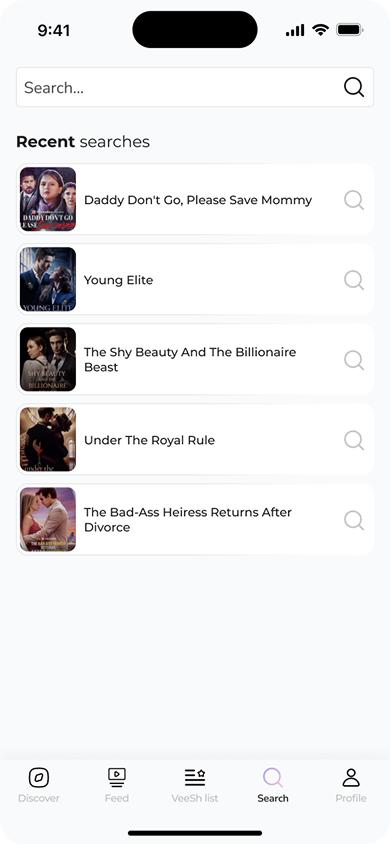
The search page enables quick content discovery through text-based searches and displays recent search history for easy content revisiting. Each search result includes thumbnails for quick recognition.
Key UI Elements:
- Prominent search bar with magnifying glass
- Recent Searches section
- Content thumbnails for visual recognition
- Quick re-search functionality
- Series titles with search icons
Step 10 — Continue Watching Widget
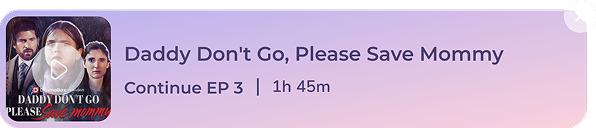
A persistent continue watching widget appears when scrolling, allowing users to quickly resume their last watched episode. It can be dismissed but provides convenient access to current viewing progress.
Key UI Elements:
- Gradient background card design
- Series poster with play button overlay
- Episode progress (Continue EP 3 | 1h 45m)
- Close button for dismissal
- DramaBox Exclusive branding
Step 11 — Profile & Account Management
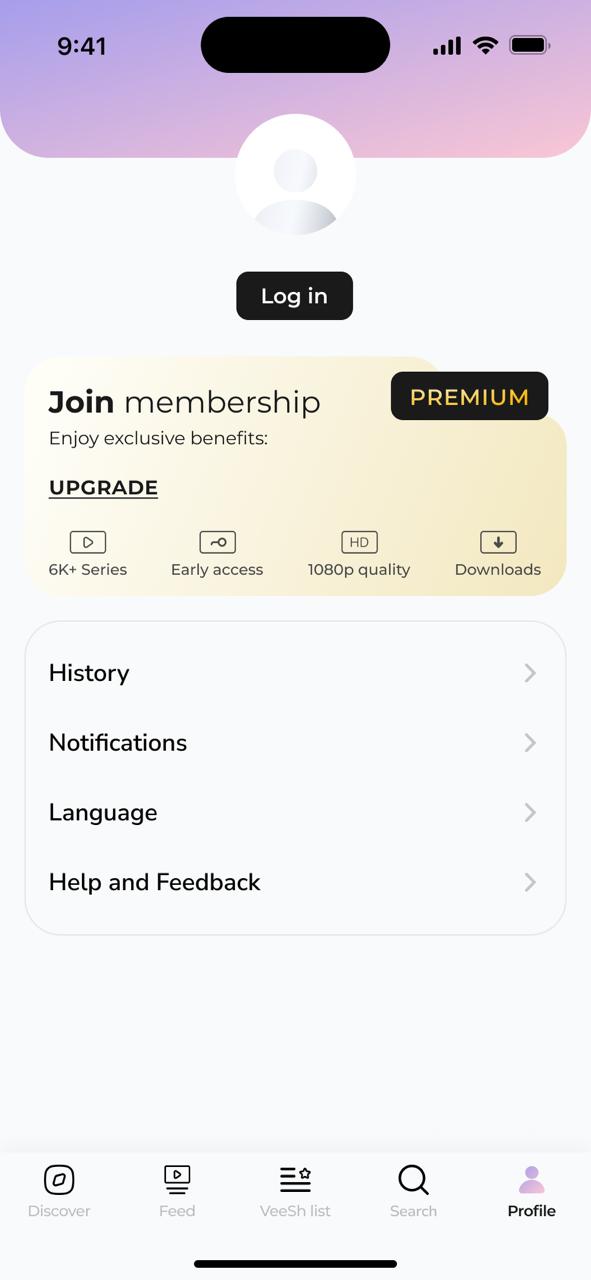
The profile section handles user authentication and account management. Users can log in, upgrade to premium membership for exclusive benefits, and access account settings including history, notifications, and support.
Key UI Elements:
- Profile placeholder and login button
- Premium membership upgrade section
- Membership benefits (6K+ Series, Early access, 1080p, Downloads)
- Account settings (History, Notifications, Language)
- Help and Feedback support options